Decode This: A Hands-On Guide to QR Code Data Types
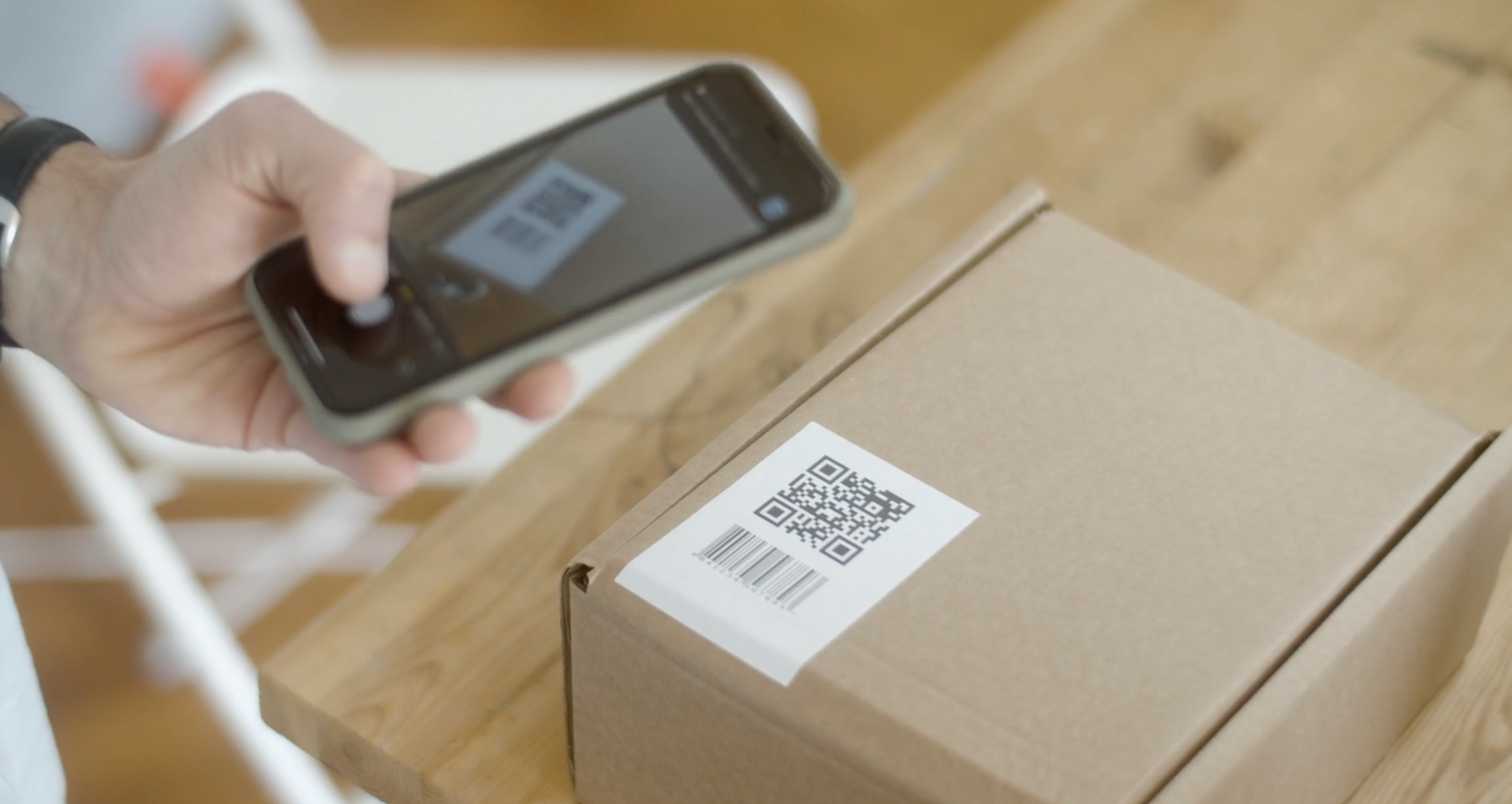
Most phone cameras with QR code scanning capabilities can handle the following examples encoded. I used the following code to make these:
require "rqrcode"

data = "the data"
qrcode = RQRCode::QRCode.new(data)

png = qrcode.as_png(
  bit_depth: 1,
  border_modules: 1,
  color_mode: ChunkyPNG::COLOR_GRAYSCALE,
  color: "black",
  file: nil,
  fill: "white",
  module_px_size: 6,
  resize_exactly_to: false,
  resize_gte_to: false,
  size: 120,
  compression: Zlib::BEST_COMPRESSION
)

IO.binwrite("qrcode.png", png.to_s)
General examples
Text — which seem to prompt a search for that text:

URLs - links that open in a browser:

Contact Info — via either vCard or MeCard (which, is slightly more compact!):

VERSION:3.0
FN:Russ
URL:https://medium.com/@rhs
URL:https://twitter.com/rhs
END:VCARD”
Email - Mailto links for quick email creation (apple docs):

SMS - which pre-fills (but doesn’t send) a text message to a specified number:

Wi-Fi Credentials — to help folks join a network joining:

Geo-Coordinates: To open location in map apps.

Phone Numbers: To dial automatically.

Calendar Events: Using iCal format.

VERSION:2.0
PRODID:-//Your Company//Your Product//EN
BEGIN:VEVENT
UID:1234567890
DTSTAMP:20230914T080000Z
DTSTART:20230915T090000Z
DTEND:20230915T100000Z
SUMMARY:Meeting with John
DESCRIPTION:Discuss Q4 plans
LOCATION:Conference Room A
END:VEVENT
END:VCALENDAR”
Apple
Most Apple devices support:
Universal Links: Scanning the QR code with an iPhone that has the app installed will open the app directly to the specified location. If the app isn’t installed, it’ll fall back to opening the web URL.

App Store Links: Directs users to an app’s App Store page.

Facetime: Using facetime://<number> will initiate a FaceTime video call:

Apple Maps: http://maps.apple.com/?q=<location> opens Apple Maps. This is similar to geo, but doesn’t seem to have an obvious way to select the zoom / height:

Lastly, Apple Wallet Passes: Encodes a URL that adds a pass to Apple Wallet. It’s a literally just a URL to a zip file. However, the zip file is a little more complex — mostly due to signing; checkout the docs, and some ruby code that helps make them.
As it’s difficult to setup, I used someone elses example code — https://github.com/keefmoon/Passbook-Example-Code/raw/master/Pass-Example-Generic/ — and a Cloudflare Worker to serve it with the correct headers. The worker code is:
addEventListener('fetch', event => {
  event.respondWith(handleRequest(event.request))
})

async function handleRequest(request) {
  const url = 'https://github.com/keefmoon/Passbook-Example-Code/raw/master/Pass-Example-Generic/Pass-Example-Generic.pkpass'

  // Fetch the .pkpass file from GitHub Pages
  const response = await fetch(url)

  // Read the file as a stream
  const body = response.body

  // Create a new response with the correct MIME type
  const init = {
    headers: {
      'Content-Type': 'application/vnd.apple.pkpass'
    },
    body: body
  }

  return new Response(body, init)
}

However, this doesn’t work for me in iOS — but I’m running in Lockdown mode. It looks like this on MacOS:

Android
For Android, you’ve got a few specialized options too:
- Market Links: Kinda like the app-store links — these directs the phone to an app on Google Play (
market://details?id=<package_name>). - Android Intents: These are sort of like the Universal Links on iOS — however the config is in the app, rather than app and web. The schemes seem different too.
Did I miss any?